
How to Send Email Invitations
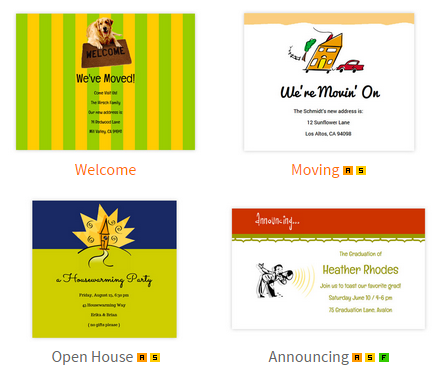
1. Begin by browsing designs and select the one you would like to use. Click a design's thumbnail to open a design sample page.
2. To select a design, click the Create an Invitation button on the design sample page.
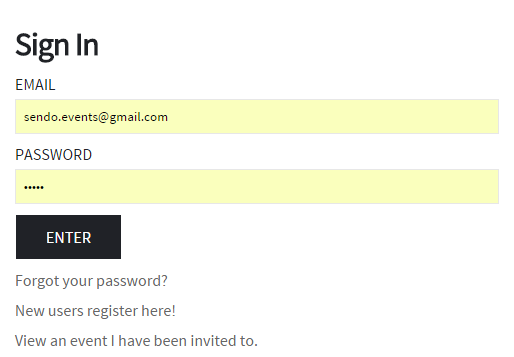
3. You will need to create a free Sendo account to continue. If you do not have one, click New Users Register Here!. If you already have an account, fill out your login information and click Enter.
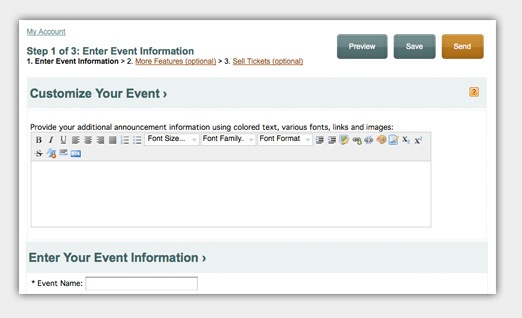
4. You will be taken to the Enter Event Information page. Fill out all necessary fields.
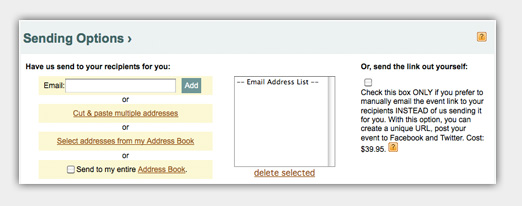
5. Specify your preferred method of delivery under Sending Options. If you would like Sendo to deliver your invitation for you, input your recipients' e-mail addresses using the available address import methods. If you would like to send the link out yourself, check the box next to Send the link out yourself.
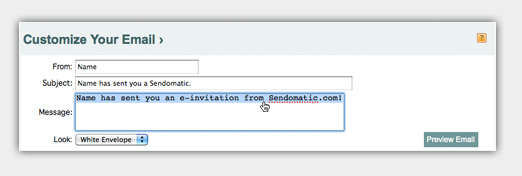
6. You may customize the e-mail sent out to your recipients under Customize Your E-mail. Please note - this only applies if you chose to have Sendo send to your recipients.
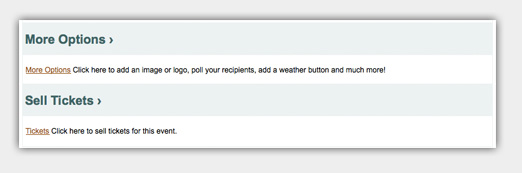
7. Click More Options if you would like to add special features such as an image or logo, poll your recipients, and weather button. Click Tickets if you would like to Sell Tickets for the event.
8. After completing the addition of information and features, you may preview your invitation by clicking Preview. If you would like to save your progress and finish at a later time, click Save. If ready to send, click Send and your Sendomatic will be on it's way!

Have more questions that are not listed above? Search our Knowledge Base.